Files - APP
This document provides a detailed overview of the various steps for managing files and folders in the [Files] app, including creating, sharing, uploading, downloading, copying, moving, renaming, compressing, and viewing information.
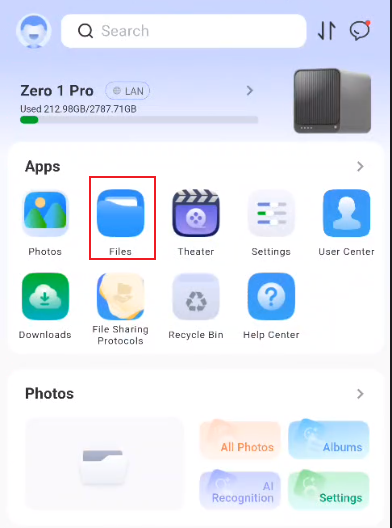
To access the [Files] page, tap “File Management” in the app modules on the home screen, as shown in the figure below:
Create a New Personal Folder
Follow these steps:
-
On the [File Management] page, select the appropriate directory.
-
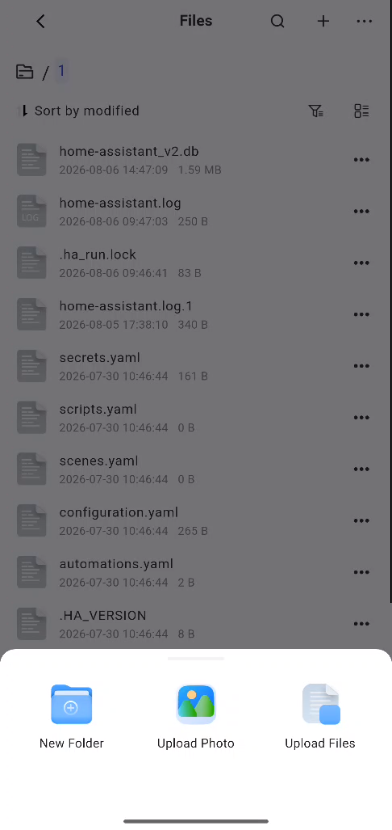
Click the “+” button in the upper-right corner of the page, and select “New Folder” in the pop-up window.
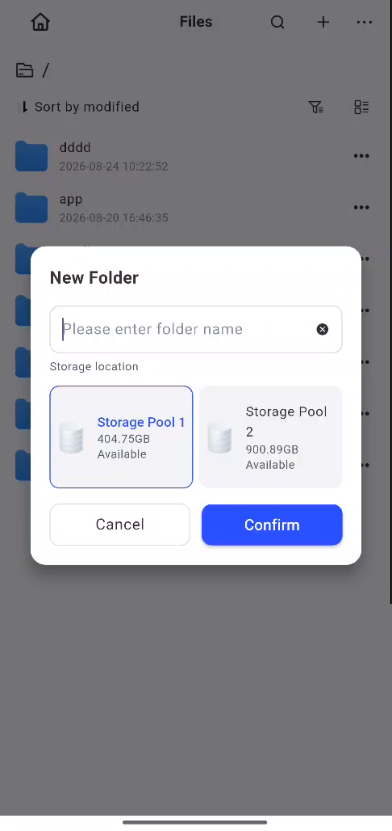
- Enter the folder name, then click the "OK" button. If it is a top-level directory, you'll need to select a location to save it, as shown in the figure:
- A new folder will be successfully created in the selected directory.
Upload File
The steps are as follows:
-
On the [File Management] page, select the appropriate file directory. If it is a top-level directory, you’ll need to select a storage location.
-
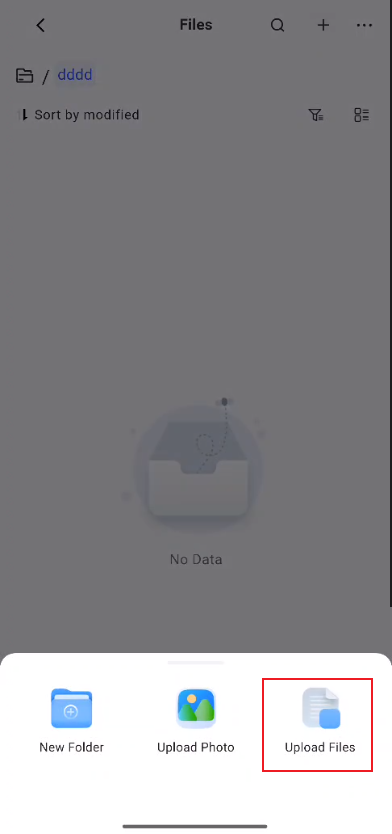
Click the “+” button in the upper-right corner of the page, and select “Upload” in the pop-up window.
-
Select the files you want to upload, then click “Confirm.”
-
Once the upload is complete, refresh the directory to view the files.
Downloading Files
The steps are as follows:
-
On the [File Management] page, select the target file or folder and press and hold it to bring up the multi-select interface (which supports selecting multiple items or selecting all).
-
After selecting the desired files, tap the “More” button in the action bar at the bottom right, then select “Download” from the pop-up window.
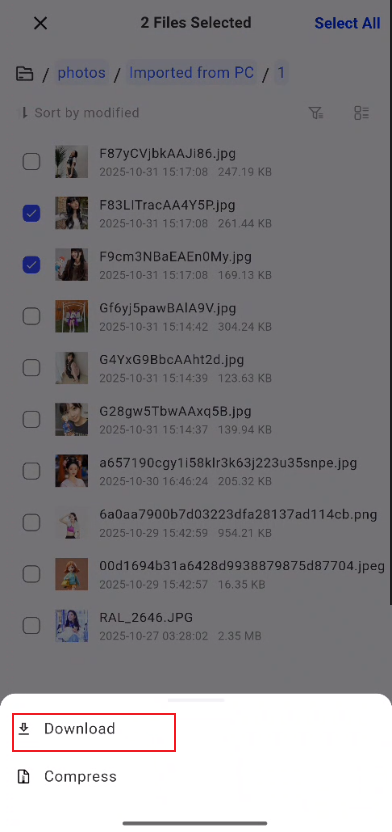
- Once the download is complete, go to the specified save location on your mobile device to view the file.
Copy/Move Files or Folders to a Specified Location
Follow these steps:
-
On the [File Manager] page, select the target file or folder.
-
Tap the “...” button on the right, and in the pop-up window, select the “Move To” or “Copy” option.
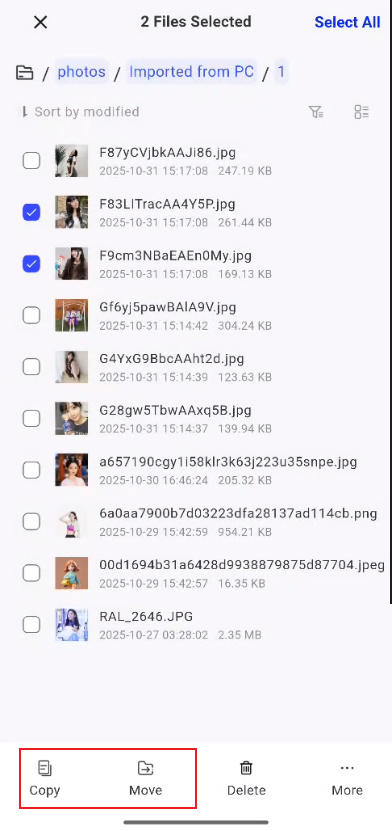
-
Continue selecting the destination path—including folders and subfolders (you can create new folders)—where you want to copy or move the files, then click OK.
-
The files or folders will be successfully copied or moved to the specified location.
Renaming a File or Folder
Follow these steps:
-
On the [File Management] page, locate the target file or folder.
-
Tap the “...” button on the right, then select the “Rename” option from the pop-up menu.
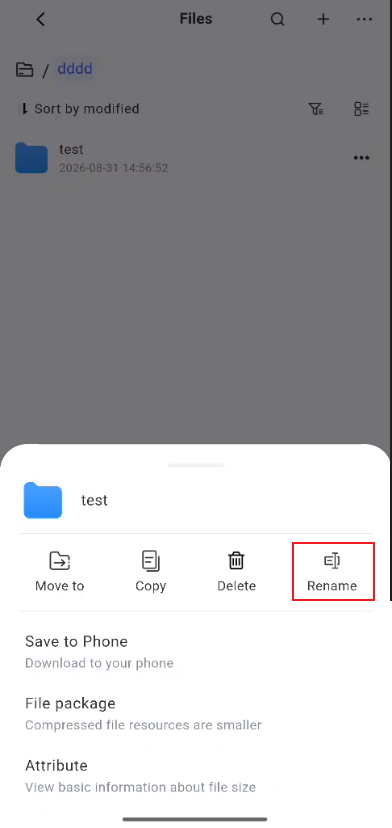
- After entering the new folder name, click “OK.”
Viewing File or Folder Information
Follow these steps:
-
On the [File Management] page, select the target file or folder.
-
Click the “...” button on the right, and select “Properties” from the pop-up menu.
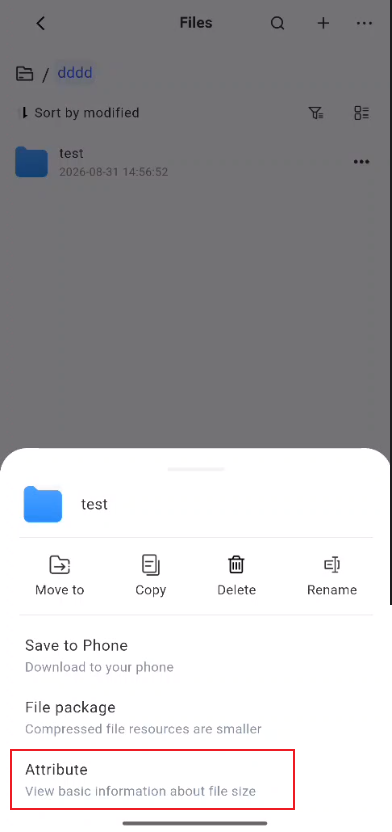
- In the pop-up window, you can view information such as the name, size, location, drive letter, modification time, and upload time of a file or folder.
File Search Feature
Using the built-in search feature in the “File Manager” app, users can efficiently locate the files or folders they need. Follow these steps:
- On the [File Manager] page, tap the “Search” button in the
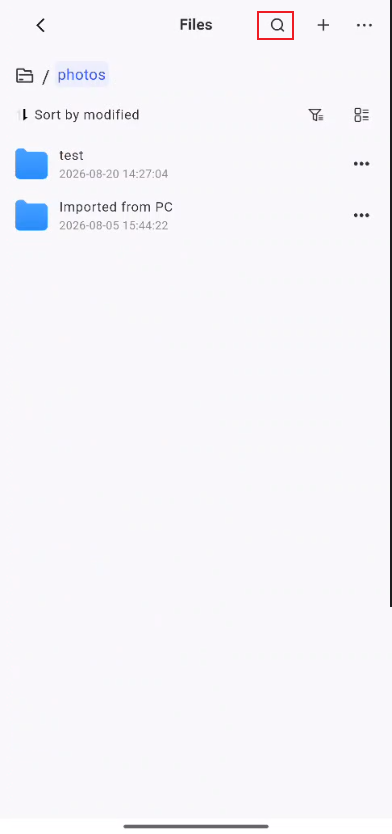
-
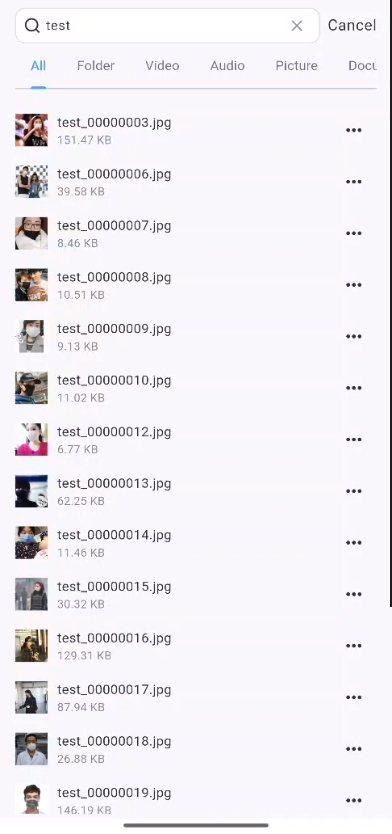
Enter a keyword in the search bar, and the system will display matching results.
-
Click a file in the search results to view its details.
-
You can filter search results by file type. Click the "Type" option below the search bar to refine your search; by default, all file types are displayed.
- Search keywords are automatically saved to your search history. Click a specific entry to quickly search for it again; click the “Clear Search History” icon to clear all entries with a single click.